 How to use PDF Annotator
Annotate the PDFs on your monday items without leaving monday. Your original files are never changed.
Before you start
- You need a monday.com account where you are an admin, a member or a guest. Viewers cannot use the app.
- The board needs at least one Files column, with a PDF uploaded to it on an item.
- PDFs of up to 25 MB and 100 pages can be opened. Password-protected PDFs cannot.
Install
- Open the PDF Annotator page in the monday.com Apps Marketplace and choose Install. An account admin may need to approve it.
- Choose the workspaces where the app should be available.
Open the app
There are three ways in. Use whichever suits you.
- From an item: open the item, click + next to its tabs, and add Annotate PDF. The tab lists the PDFs on that item.
- From the item menu: click the three dots on an item's row and choose Annotate PDF.
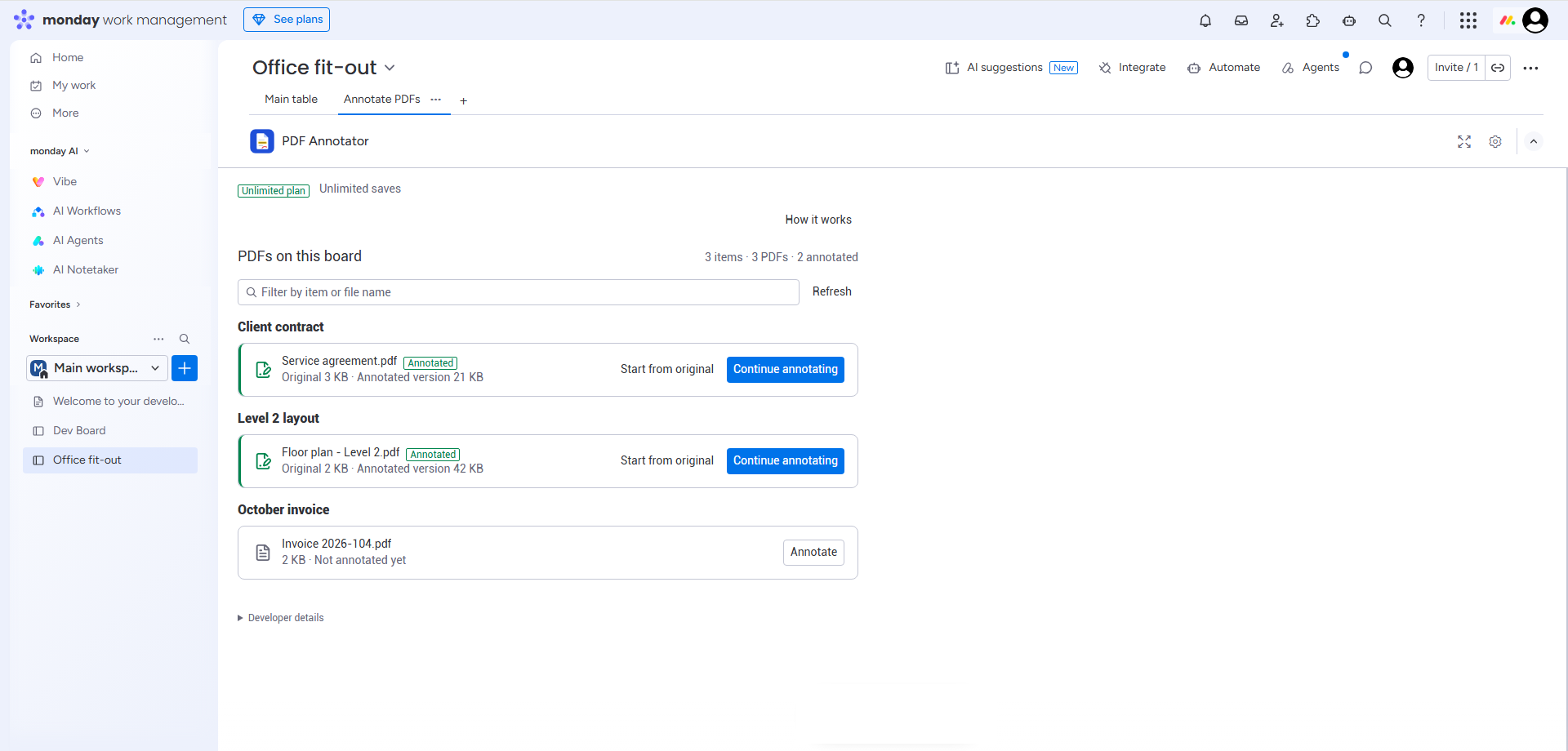
- For the whole board: click + next to the board's views and add Annotate PDFs. It lists every item that has a PDF.
Connect, the first time only
The first time you open the app it asks you to Connect. A monday window opens asking you to approve access; approve it and the window closes. Each person connects once, and the app then acts with that person's own monday permissions.
Annotate and save
- Click Annotate next to a PDF. It opens in the editor.
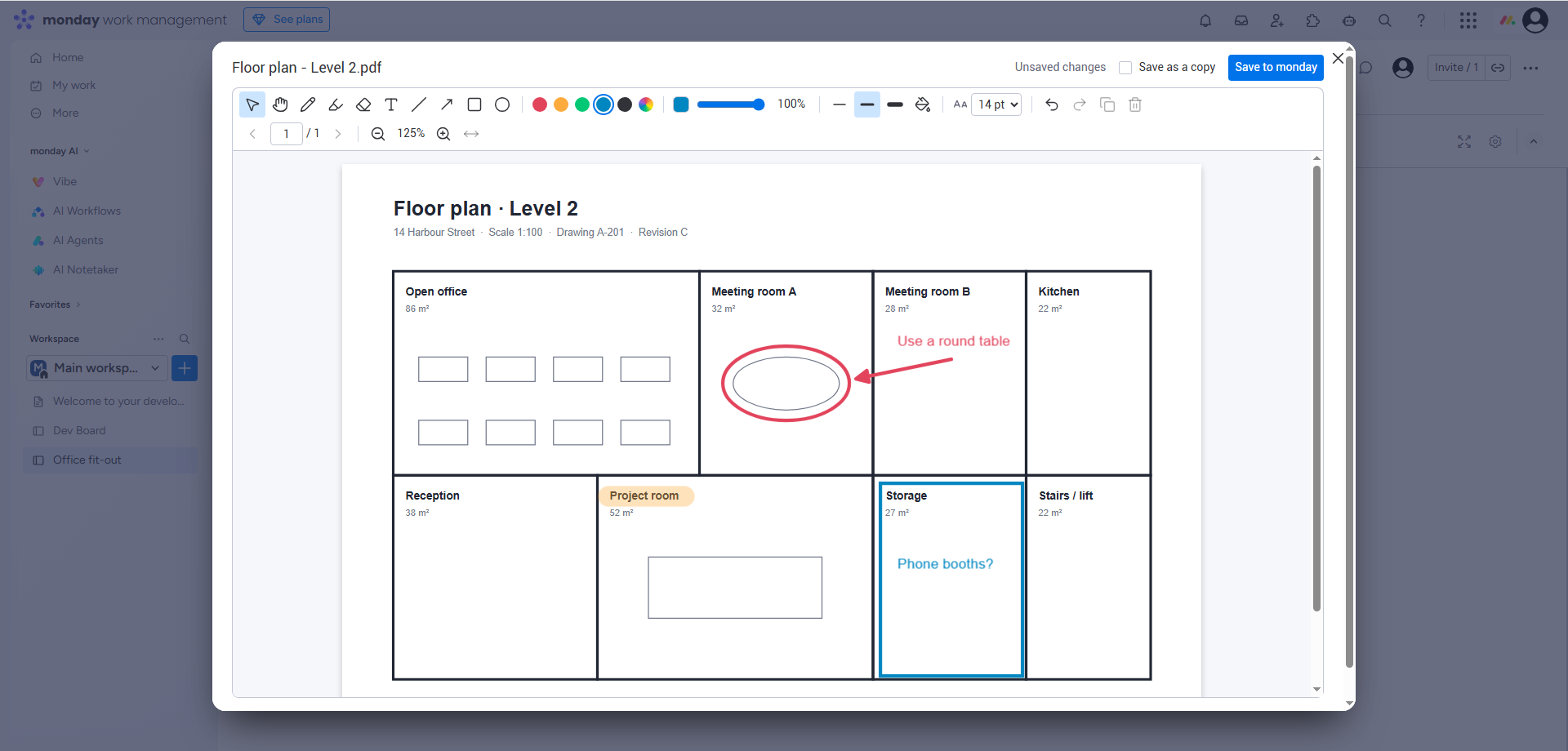
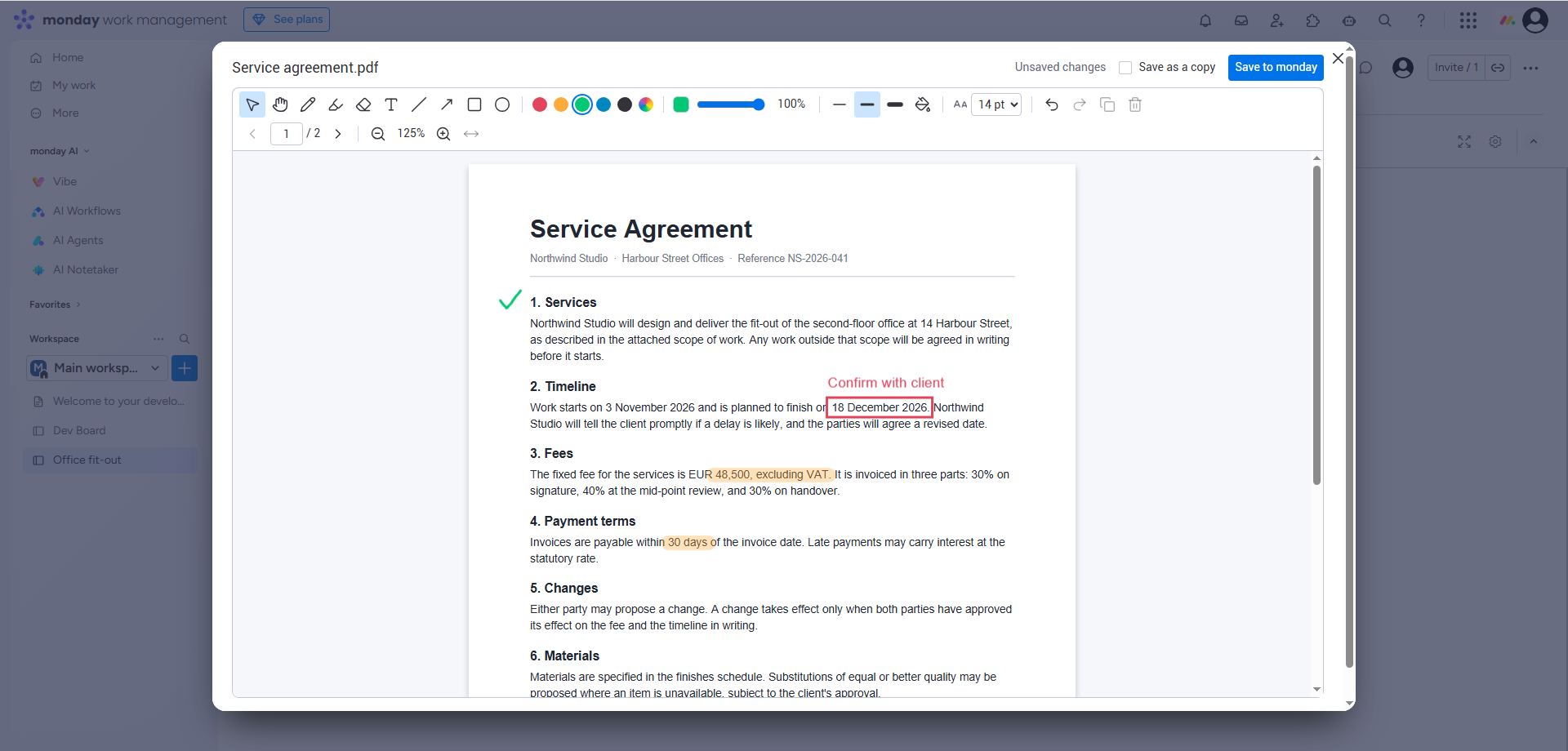
- Choose a tool from the toolbar: pen, highlighter, text, rectangle, ellipse, arrow, line or eraser. Pick a colour, a thickness and an opacity. Use the page and zoom controls to move around; undo and redo are there if you slip.
- Click Save to monday.
The annotated version is saved as a separate file, named after the original (for example
contract_annotated.pdf), in an Annotated PDFs column on the
same item. The app adds that column to the board the first time anyone saves.
Carry on later
A PDF that already has an annotated version shows two buttons. Continue annotating opens the annotated version so you can add to it. Start from original opens the untouched original.
Saving again updates the annotated version, so files do not pile up. To keep the existing version as it is and save a second file next to it, tick Save as a copy before saving.
What happens to your files
- The app never changes, replaces or deletes your original PDF, or anything else in the column it is in.
- The app does not keep your PDFs. They are fetched for the moment you are working on them and saved straight back to monday.
- Annotations become part of the saved PDF. Once saved, they can be added to but not edited or removed individually.
Plans
- Free: 3 saved annotated PDFs per calendar month, shared by everyone in the account.
- Team: 100 saved annotated PDFs per calendar month.
- Pro Unlimited: unlimited saves.
Opening and annotating are never counted, only a successful save. On the Free and Team plans the app shows how many saves are left this month, and an Upgrade plan button that opens monday's own plan screen.
If something is not working
- “No PDFs found on this item.” Upload a PDF to a Files column on the item, then choose Check again.
- “Viewers can't use PDF Annotator.” Ask an account admin to change your role to member.
- The board has no Annotated PDFs column and you can't add one. Ask someone who can add columns to the board to save an annotated PDF once; after that everyone can save.
- “Your monday connection has expired.” Choose Connect again.
- The saved file does not appear in the board straight away. Reload the page.
Help
Email support@nichospt.net. Support is provided in English.